Claude Code
Claude Code를 DeepSeek API에 연결하기
Set up Claude Code with the DeepSeek API using an OpenAI-compatible endpoint. Configure your API key, model name, and environment variables to run Claude Code at lower cost.
Installing Claude Code from Scratch
Claude Code can be used via CLI or VSCode Extension. Choose whichever you prefer.
Option 1: Install Claude Code CLI
- Install Node.js 18+.
- Windows users need to install Git for Windows.
- Run the following command in your terminal to install Claude Code:
npm install -g @anthropic-ai/claude-code
- After installation, run the following command. If the version number is displayed, the installation is successful:
claude --version
Option 2: Install Claude Code VSCode Extension
- Install VSCode
- Install Claude Code VSCode Extension
After installation, search for the VSCode setting claudeCode.disableLoginPrompt and enable it.
Configuring Claude Code
Claude Code can be configured via a configuration file or environment variables. In most cases, prefer the configuration file approach, as settings in the configuration file can be read by both Claude Code CLI and VSCode Extension.
Option 1: Configure via Configuration File
Configuration file location:
- Linux / Mac:
~/.claude/settings.json - Windows:
C:\Users\<your username>\.claude\settings.json - If the file does not exist, create it.
Configuration file content:
{
  "env": {
    "ANTHROPIC_BASE_URL": "https://api.deepseek.com/anthropic",
    "ANTHROPIC_AUTH_TOKEN": "<your DeepSeek API Key>",
    "ANTHROPIC_MODEL": "deepseek-v4-pro[1m]",
    "ANTHROPIC_DEFAULT_OPUS_MODEL": "deepseek-v4-pro[1m]",
    "ANTHROPIC_DEFAULT_SONNET_MODEL": "deepseek-v4-pro[1m]",
    "ANTHROPIC_DEFAULT_HAIKU_MODEL": "deepseek-v4-flash[1m]",
    "CLAUDE_CODE_DISABLE_NONESSENTIAL_TRAFFIC": "1",
    "CLAUDE_CODE_EFFORT_LEVEL": "max"
  }
}
Option 2: Configure Environment Variables
Linux / Mac users, run the following commands to configure environment variables for the DeepSeek Anthropic API. Get your API Key from the DeepSeek Platform:
export ANTHROPIC_BASE_URL=https://api.deepseek.com/anthropic
export ANTHROPIC_AUTH_TOKEN=<your DeepSeek API Key>
export ANTHROPIC_MODEL=deepseek-v4-pro[1m]
export ANTHROPIC_DEFAULT_OPUS_MODEL=deepseek-v4-pro[1m]
export ANTHROPIC_DEFAULT_SONNET_MODEL=deepseek-v4-pro[1m]
export ANTHROPIC_DEFAULT_HAIKU_MODEL=deepseek-v4-flash[1m]
export CLAUDE_CODE_DISABLE_NONESSENTIAL_TRAFFIC=1
export CLAUDE_CODE_EFFORT_LEVEL=max
Windows users, run:
$env:ANTHROPIC_BASE_URL="https://api.deepseek.com/anthropic"
$env:ANTHROPIC_AUTH_TOKEN="<your DeepSeek API Key>"
$env:ANTHROPIC_MODEL="deepseek-v4-pro[1m]"
$env:ANTHROPIC_DEFAULT_OPUS_MODEL="deepseek-v4-pro[1m]"
$env:ANTHROPIC_DEFAULT_SONNET_MODEL="deepseek-v4-pro[1m]"
$env:ANTHROPIC_DEFAULT_HAIKU_MODEL="deepseek-v4-flash[1m]"
$env:CLAUDE_CODE_DISABLE_NONESSENTIAL_TRAFFIC="1"
$env:CLAUDE_CODE_EFFORT_LEVEL="max"
Using Claude Code
Using Claude Code CLI
Enter the project directory and execute the claude command to get started.
cd /path/to/my-project
claude
Using Claude Code VSCode Extension
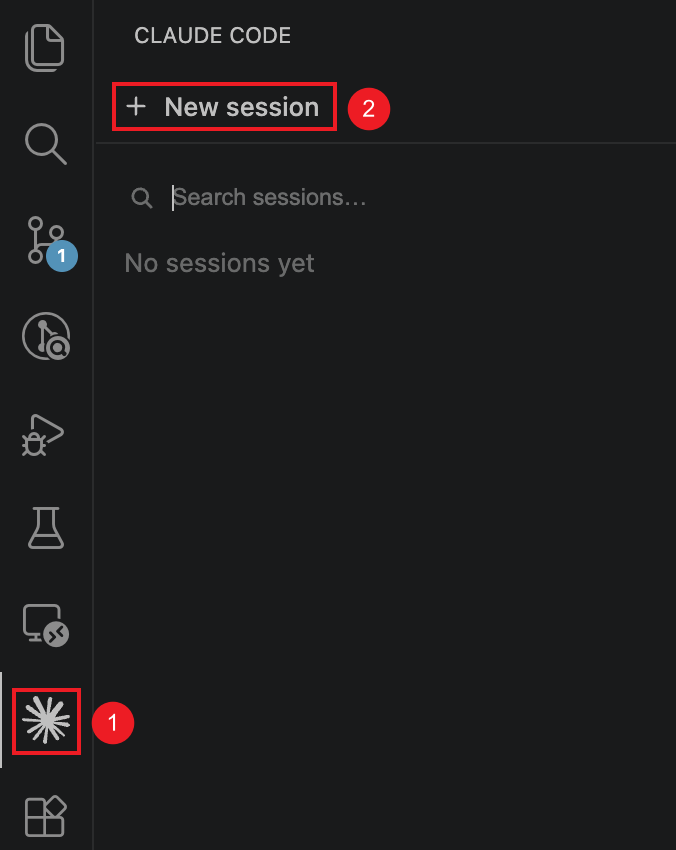
Open your project directory in VSCode, click the Claude Code icon in the sidebar, and click New session to get started.